Browse the docs

Messaging
Who can message whom, when chats open and close, and what you can do in a chat.
On this page
- Who can message whom
- Start a chat as a parent
- Start a chat as a sitter
- When a chat closes
- What each side sees
- What you can do in a chat
- Your Inbox
- Good to know
- Questions
- Why does Message ask me to become a member?
- The chat says it has closed. Can I reopen it?
- Can a sitter message me before I book them?
- Should I share my phone number in chat?
- Related
Parents and sitters message each other in the app, in the Inbox tab. Who can start a chat, and how long it stays open, depends on whether there's a booking between you and whether the parent has a Wyndy Membership.
Who can message whom
| Situation | Can you message? |
|---|---|
| Parent with a booked job with this sitter | Yes, always. No membership or ID check needed for a sitter you've booked. |
| Parent and a sitter you haven't booked, with a membership | Yes, after your one-time ID check. |
| Parent and a sitter you haven't booked, without a membership | No. Tapping Message offers the membership first. |
| Sitter and a family that has booked you | Yes. Message appears on the family's profile once you have an active booking with them. |
| Sitter and a family that hasn't booked you | Only by replying, if the parent messages you first. |
| After a job, parent without a membership | Until 24 hours after the job's scheduled end. Then the chat closes. |
| After a job, parent with a membership | Yes. Members' chats don't close, for either side. |
Start a chat as a parent
-
Open the sitter's profile and tap Message.
The button is on every sitter profile. You can also open the job and tap Message, or pick the chat in your Inbox. -
If you aren't a member, start the membership.
The sheet reads "Become a member to message sitters" and offers Start free trial if you haven't had a trial. Close it to go back without messaging. -
If you haven't verified your ID, tap Verify Now.
The sheet is titled "Verify your ID to continue" and explains: "For everyone's safety, we ask parents to verify their identity before messaging or booking sitters. It only takes a minute." You do this once. See ID verification for parents. -
Write your message and send it.
In a new chat, the app shows "Tap below to start a conversation" with two openers you can tap: "Hi, {Name}. Nice to meet you!" and "Hey!".
If you've already booked this sitter on a job that hasn't been cancelled, steps 2 and 3 don't apply. The chat opens straight away. Right after you book, the confirmation screen says "You can now message {Name} in the app until the job is complete." and has a Say hey link that opens the chat.
Start a chat as a sitter
Once a family books you, open their profile and tap the ⋯ menu, then Message, or open the booking in your Bookings tab and tap Message. Before a booking, the family's profile menu only shows Report and Block. You can still reply when a parent messages you first.
When a chat closes
For parents without a membership, a chat stays open until 24 hours after the scheduled end of your latest job with that sitter. Say the job runs Saturday from 6 to 11 PM. You can both keep messaging until 11 PM on Sunday.
What each side sees
| When | Parent sees | Sitter sees |
|---|---|---|
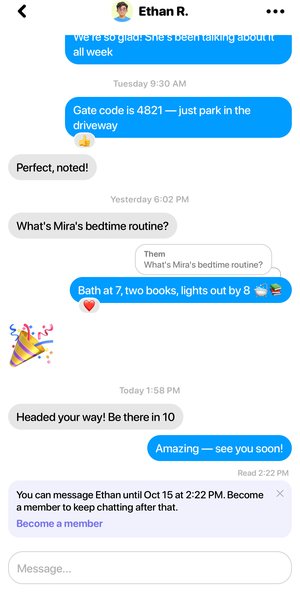
| While the post-job window is open | A banner: "You can message {Name} until {time}. Become a member to keep chatting after that." with a Become a member link. On the job, the button reads Message until {time}. | A banner: "Messaging is available until {time}." |
| After it closes | "This conversation has closed" in the thread. The message box is replaced with "Become a member to keep messaging {Name}." and a Become a member button. | "This conversation has closed" in the thread, and no message box. |
You can dismiss the banner. It stays dismissed for that chat on your phone. Booking the same sitter again reopens the chat, with a new window that ends 24 hours after the new job.
What you can do in a chat
| To do this | Do this |
|---|---|
| Reply to a specific message | Swipe right on a text message, or press and hold it and tap Reply. Your reply shows the quoted message above it. |
| React | Press and hold a message and pick ❤️, 😂, 👍, 🎉, 😮 or 🥹. Double-tap a message to send a ❤️. |
| Copy text | Press and hold a message and tap Copy. |
| Pin a message | Press and hold it and tap Star. Starred messages sit in a strip at the top of the chat. Tap one to see it again, or tap Unstar to remove it. |
| Change the look | Tap ⋯, then Change Theme, and pick a theme in the Chat theme sheet. "You both see the theme you pick." |
| See their profile | Tap their name at the top, or tap ⋯, then View Profile. |
| Report them | Tap ⋯, then Report Profile. |
| Block a sitter (parents) | Tap ⋯, then Block. |
| Delete the chat | Tap ⋯, then Delete Message, and confirm with Yes, Delete. Or swipe the chat left in your Inbox and confirm Delete. |
You see a typing indicator while the other person writes, and a "New messages" line above anything you haven't read. When someone changes the theme, the chat shows a note like "Sam changed the chat theme to Peaches." There are 24 themes, from Classic and Wyndy Hearts to Under the Sea and Conch Street. A message of one to three emoji shows extra large.
Your Inbox
Every conversation lives in the Inbox tab. A dot on the tab means you have unread messages, and each chat shows its own unread count. Each row shows the last message. When the last thing in a chat is a sitter's application, the row reads "{Name} applied for your job →" for the parent and "You applied to this job →" for the sitter. In the chat itself, that application shows as a line with the job's date, which you can tap to open the job. A closed chat shows "Conversation closed" in the list, so you can tell before you open it. You also get a push notification with the sender's name and the message when someone writes to you. With no chats yet, the Inbox says "No messages yet" with a button to Browse sitters (parents) or Browse jobs (sitters).

Good to know
- Stars are kept on your phone. The other person doesn't see which messages you starred.
- Cancelled bookings don't open a chat window. Only a booking that wasn't cancelled counts.
- Once a sitter is booked on your job, the job's menu also has options to send them a text or call their phone while the chat is open. Sitters get a Contact button on the booking when the family's phone number is available.
- If the other person deletes their account, you can still read the chat, but you can't send new messages.
- A few phrases set off a small animation for both of you: "happy birthday" sends balloons, "congrats" or "woohoo" sends confetti, and "thank you so much" or "you're the best" sends hearts.
- You can't change the theme once a chat has closed.
Questions
Why does Message ask me to become a member?
Messaging a sitter before you book is a membership feature. You can always message a sitter once you've booked them, without a membership.
The chat says it has closed. Can I reopen it?
Yes, two ways. Book that sitter again, or start a membership. Either one lets you both send messages again.
Can a sitter message me before I book them?
No. A sitter can start a chat with a family only once they have an active booking with them. They can reply if you message first.
Should I share my phone number in chat?
You don't need to. Once a sitter is booked, the job already gives you ways to reach each other.
Related
Still stuck? Open the Wyndy app and go to Me, then Help, or contact the Wyndy team.