Browse the docs

Paying and tipping
Check the hours, add a tip and pay in the app after each job.
On this page
- When it's time to pay
- Pay on the wrap-up screen
- The payment lines
- How the tip works
- A worked example
- After you pay
- If you don't pay
- If a payment fails
- Good to know
- Questions
- My sitter put in the wrong hours. What do I do?
- Does my sitter get the whole tip?
- Can I pay with a different card?
- I forgot to pay. Was I charged?
- Related
You pay for each job in the app once your sitter submits their hours. One screen lets you check the hours, rate your sitter, add a tip and pay, and if you don't get to it, your card is charged automatically 24 hours after the hours were submitted.
When it's time to pay
When the job ends, your sitter enters the time they started and finished and submits it. You get a notification titled Time to pay that says "Tap to pay Maya." The job moves to Needs your attention on the Jobs tab with a Review & pay button.
Open the wrap-up from the notification, from the card's Review & pay button, or from the job page. Until your sitter submits their hours, the job sits under Wrapping up and there's nothing to pay yet.
If you haven't paid after a while, you get a Payment Reminder notification ("Tap to pay Maya.") and then a reminder email.
Pay on the wrap-up screen
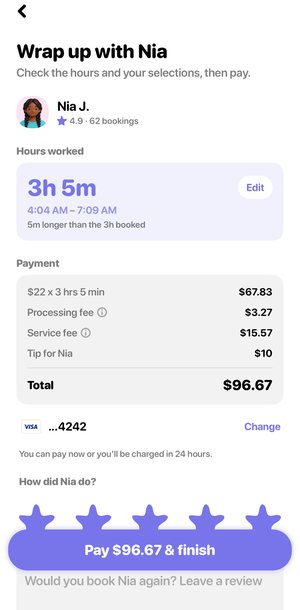
The screen is titled "Wrap up with Maya" and says "Check the hours and your selections, then pay." Everything is on one scroll, and nothing is charged until you tap the pay button at the bottom.
-
Check Hours worked.
You see the time your sitter worked, such as "4h 30m", and the start and end times they submitted. If that's 5 or more minutes different from what you booked, a line says so, for example "30m longer than the 4h booked". It's there to inform you, not as a warning. -
Tap Edit if the hours are wrong.
The Edit job time window has a Start time and an End time. The new total updates as you change them. Tap Update to keep the change or Close to leave the hours as they were. -
Check Payment.
Each line of the charge is listed, then the Total. Tap the info icon next to a fee to see what it's for. Your card is shown under the total. Tap Change to use a different card, or Add if there isn't one. -
Rate your sitter under How did Maya do?
The stars start at 5. Tap a different star to change it. Once there's a rating, a box appears for a written review: "Would you book Maya again? Leave a review". -
Choose a tip under Add a tip for Maya.
Pick 10%, 15% or 20%, tap Other amount to type your own, or tap Remove tip. "Sitters keep 100% of tips." -
Keep or untick Add Maya to your favorites.
"Favorites see your jobs first." The box is ticked when you rate 5 stars. You won't see it if Maya is already a favorite. -
Tap Pay & finish.
The button shows the total, such as Pay $94.67 & finish. If you don't have a card on file, it reads Add a payment method instead.
The payment lines
| Line | What it is |
|---|---|
| Rate x hours, such as "$20 x 4" | Your sitter's pay: the hourly rate times the hours worked, counted to the minute. |
| Processing fee | Card processing: 2.9% with a membership, 3.5% without. |
| Service fee | 20% of your sitter's pay plus tip, never more than $20. Members pay none, and see the fee they would have paid crossed out. |
| Tip for Maya | The tip you chose. It shows $0 when there's no tip. |
| Wyndy Credit | Credit coming off this job. It only appears when you have credit. |
How the tip works
- Tips are a percentage of your sitter's pay for the hours, not of the fees.
- Each choice is rounded to whole dollars and is at least $1. On a very short job, choices that round to the same amount are shown once.
- 15% is picked for you. The suggestion follows your rating until you change the tip yourself: 3 stars suggests 10%, and 1 or 2 stars removes the tip.
- Other amount opens a Custom tip screen ("100% of your tip goes to your sitter."). Type the amount and tap Add tip.
A worked example
Say you book a sitter at $20 an hour, they work 4 hours, and you leave the suggested 15% tip. Here's the wrap-up both ways.
| Line | With a membership | Without |
|---|---|---|
| $20 x 4 | $80 | $80 |
| Tip (15%) | $12 | $12 |
| Service fee | $0 | $18.40 |
| Processing fee | $2.67 | $3.86 |
| Total | $94.67 | $114.26 |
Without a membership, the service fee is 20% of $92 (pay plus tip), which is $18.40. Processing is a percentage of everything before it. The $92 for your sitter's pay and tip is the same either way. The membership saves $19.59 on this job.
If you aren't a member, the wrap-up shows how much you'd save on that job with a line like "You could save $19.59 on this job with Wyndy Membership". Tap it to see the plans. If you join from there, the total updates before you pay. Members see "You saved" and the amount under the total.
After you pay
A receipt prints on screen with "That was easy. We love being part of your village." and the amount paid, with a View booking link to the job page. Tap Done to go back to your jobs, or Post another job to start the next one.
If the job was the trial for recurring care, the screen asks "Was it a great fit?" instead and has a link to message your sitter about a regular schedule.
- Your rating, review and favorite are saved when you pay.
- Your sitter is notified that you paid them.
- A receipt is emailed to you.
- The job moves to Past jobs, and its page keeps the receipt, with Share and Detailed PDF buttons.
If you don't pay
When your sitter submits their hours and you have a card on file, the wrap-up says "You can pay now or you'll be charged in 24 hours." If you don't pay, your card is charged automatically 24 hours after the hours were submitted, for the hours your sitter submitted.
If a payment fails
A message appears above the button and the button changes to Try again. You haven't been charged. The message tells you what went wrong:
| Message | What to do |
|---|---|
| "That payment didn't go through. Check your card and try again; you have not been charged." | Tap Change and use another card, then tap Try again. |
| "We couldn't reach Wyndy. Check your connection and try again; you have not been charged." | Check your connection and tap Try again. |
| "We couldn't complete the payment. Please try again; you have not been charged." | Try again. If it keeps failing, contact the Wyndy team. |
If you leave the screen, the job stays under Needs your attention with Review & pay, so you can come back to it.
Good to know
- Hours are counted to the minute. 4 hours 30 minutes at $20 an hour is $90, not 5 hours.
- Edited hours need to make sense. If the end is before the start, you'll see "Set an end time after the start time to continue". A job can't be longer than a day: "That is longer than a day. Check the start and end times".
- Wyndy credit comes off first. If it covers the whole total, your card isn't charged and the receipt says "Paid with Wyndy Credit". See Credits and referrals.
- Each sitter is paid separately. On a group job with more than one sitter, each one has their own wrap-up and receipt.
Questions
My sitter put in the wrong hours. What do I do?
Tap Edit next to Hours worked, set the right start and end times, and tap Update. The total changes before you pay.
Does my sitter get the whole tip?
Yes. Sitters keep 100% of tips.
Can I pay with a different card?
Yes. Tap Change next to your card on the wrap-up screen and add the new one before you pay.
I forgot to pay. Was I charged?
Yes, if a card was on file: the charge happens 24 hours after your sitter submitted their hours, without a tip. Your receipt is in your email and on the job page.
Related
Still stuck? Open the Wyndy app and go to Me, then Help, or contact the Wyndy team.