Browse the docs

Inviting specific sitters
Send a job to a sitter you found, your favorites, or everyone nearby.
On this page
- Your options
- Where the step starts
- Send a job to one sitter
- Send a job to your own sitters
- Adding favorites
- Send a job to everyone nearby
- What sitters receive
- Who gets an alert
- Good to know
- Questions
- Why don't I see the Post to step?
- Can other sitters see a job I sent only to my own sitters?
- My favorite didn't get the alert. Why?
- Does inviting a sitter cost anything?
- Related
When you post a job, you choose who it goes to on the Post to step: every sitter near you, the sitters you've booked before, your favorites, or one sitter you found. Sitters you invite get a notification with your name on it and apply the same way as anyone else, and a job sent only to invited sitters stays out of everyone else's feed.
Your options
| Row | Who gets the job | When you see it |
|---|---|---|
| The sitter you started from | Always included, pinned at the top with a tick you can't remove. | When you started the post from their profile. |
| All sitters | "Everyone available near you." | Always. |
| Previously booked | The sitters who've finished a job for you, all of them or only the ones you pick. | When at least one sitter has finished a job for you. |
| Favorites | Your favorites, all of them or only the ones you pick. | When you have at least one favorite. |
All sitters stands alone: it already includes everyone, so ticking it unticks both lists, and ticking a list unticks All sitters. Previously booked and Favorites can both be on, and the job goes to everyone ticked on either.
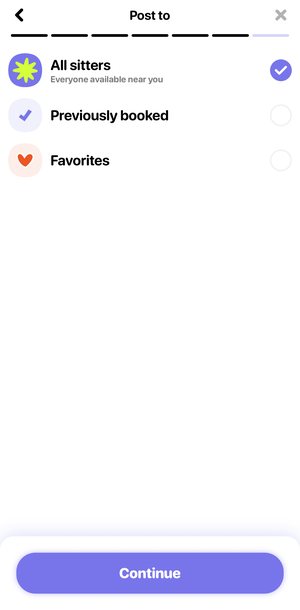
Where the step starts
| Where you started the post | What's ticked when the step opens |
|---|---|
| The Jobs tab | The last answer you picked on this step, minus anyone no longer on your lists. The app remembers it on your phone. The first time, All sitters. |
| A sitter's profile | That sitter only. The rows under Also post to... start unticked. |
| The Post a job card on the Sitters tab | The list you were looking at: Previously booked, Favorites, or All sitters from All. |
Send a job to one sitter
Start from the sitter's profile, so they're part of the job from the beginning.
-
Open the sitter's profile.
From the Sitters tab, a search, your favorites, or a past job. -
Tap Post a job.
The button at the bottom says "To Maya". If you've booked this sitter before, you can also tap Book again on the card that says how many times you've booked them. -
Fill in the job.
The steps are the same as any post: when, who needs care, the description, location and rate. See Posting a job. -
On Post to, decide who else gets it.
The sitter is shown at the top with their rating and history, already ticked. Under Also post to..., nothing is ticked. Leave it that way to send the job only to them, or tick All sitters, Previously booked or Favorites to add more people. -
Tap Continue, check the summary and tap Post Job.
The summary's POSTING TO line shows the sitter's photo and name.
If you close the post before finishing, you go back to that sitter's profile.
Send a job to your own sitters
Your own sitters are the ones on your Previously booked and Favorites lists. A favorite you've also booked is on both lists, with a heart next to their name.
-
Post a job as usual.
Tap Post a job on the Jobs tab, or on the Sitters tab while you're looking at one of your lists. -
On Post to, tick Previously booked, Favorites or both.
Ticking a row adds everyone on that list. Tapping a ticked row again takes the whole list off. -
To pick some of them, tap the line under the list's name.
It says how many are in, such as "5 of 5 selected". A sheet opens with the note "Choose which of the sitters you've booked get this job." or "Choose which favorites get this job." Each sitter shows their rating and their history with you, such as how many times you've booked them and the month of the last one. Tick the ones you want. -
Tap Done.
With nobody ticked, the button reads Pick at least one sitter and can't be tapped. Tapping outside the sheet keeps your picks too. Back on the step, the line shows your new count, such as "2 of 5 selected". -
Tap Continue and post.
The summary's POSTING TO line lists Previously booked and Favorites, each with how many sitters from it you picked.
Unticking a sitter here only leaves them off this job. They stay on your lists.
Adding favorites
Tap Favorite on a sitter's profile, or tick Add Maya to your favorites when you pay after a job. You'll find them all on the Sitters tab under Favorites, which is also where Me, then Favorites takes you. See Reviews and favorites.
Send a job to everyone nearby
Tick All sitters. It's ticked for you the first time you post from the Jobs tab, and after that whenever it was your last answer on this step. If you have no favorites, haven't booked anyone yet and didn't start from a profile, the Post to step is skipped and the job goes to all sitters. The summary then shows All sitters with no edit button.
What sitters receive
| Who | Notification | Where they see the job |
|---|---|---|
| Sitters you invited (from Previously booked or Favorites, or the sitter you started from) | Sarah K. invited you: "$22/hr on Oct. 24. Tap to apply!" | Their Jobs feed. No other sitter sees it. |
| Nearby sitters, with All sitters | New job from Sarah K.: "$22/hr on Oct. 24. Tap to apply!" | In their Jobs feed. |
| The sitter you started from, with All sitters | New job from Sarah K. | The notification opens it, even if the job is outside the area they've set. |
The rate in the notification is what the sitter would earn per hour. Tapping it opens the job, where they tap Apply. Invited sitters go through the same application as everyone else, so you still choose and book from your applicants. See Applicants and booking.
Who gets an alert
- Invited sitters are alerted even if the job falls outside the days, times or distance they've set for job alerts.
- With All sitters, alerts go to nearby sitters whose availability and travel distance fit the job. The sitter you started from is always included.
- Nobody is alerted if they already have a booking at an overlapping time, if they cancelled a booking on this job, or if you've blocked them.
Good to know
- You can't change who a job goes to after posting. There's no option to add sitters or open a posted job to everyone. If your invited sitters can't make it, cancel the job and post it again with All sitters. Cancelling is free while nobody is booked.
- What you see after posting. If you didn't pick All sitters, the success screen says "We notified the sitters you picked." and the job's card on the Jobs tab starts with "We've notified your sitters" instead of "We're finding sitters near you".
- An invite isn't a booking. The sitter still has to apply, and the job isn't theirs until you book them.
- Drafts don't keep your choice. If you finish a draft later, you choose who to post to again. See Draft jobs.
- Recurring care works the same way. The trial job goes to whoever you pick, and you set up the regular schedule with the sitter you book.
Questions
Why don't I see the Post to step?
It only appears when there's a choice to make: you started from a sitter's profile, you have at least one favorite, or a sitter has finished a job for you. Otherwise the job goes to all sitters.
Can other sitters see a job I sent only to my own sitters?
No. Only the sitters you invited can see it.
My favorite didn't get the alert. Why?
They may already be booked at that time, have cancelled on this job before, or have notifications turned off on their phone.
Does inviting a sitter cost anything?
No. You only pay once a job is done, the same as any other job.
Related
Still stuck? Open the Wyndy app and go to Me, then Help, or contact the Wyndy team.