Browse the docs

Posting a job
Pick the time, the kids, the place and a rate, then choose which sitters see it.
On this page
- Start a post
- Post a job, step by step
- Tasks and household details
- Who sees your job
- What the summary costs
- Drafts
- What happens after you post
- Good to know
- Questions
- Am I charged when I post?
- Can I change a job after posting it?
- Why didn't I see the "Post to" screen?
- Can I post for more than one family or a church group?
- Related
Posting a job tells sitters near you when you need care, for whom, where and at what rate, so the ones who are free can apply. Posting is free: nothing is charged until a job is done, and you can save a half-finished post as a draft.
Start a post
There are three ways in, and they all open the same steps:
- Tap Post a job at the bottom of the Jobs tab.
- On a sitter's profile, tap the Post a job button (it says "To {name}"). The job starts out going only to that sitter, and you can add more people later.
- On the Sitters tab, tap the Post a job card at the bottom. It shows when you have favorites or sitters you've booked before, and the list you're looking at is who the job starts out going to.
Each screen has a progress bar at the top and a close X. You answer one question per screen and tap Continue to move on.
Post a job, step by step
-
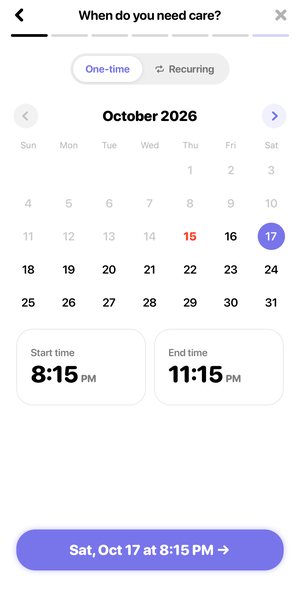
Pick One-time or Recurring, then the date and times.
The screen asks When do you need care? Tap a day on the calendar (today or later), then set the Start time and End time. Tap the month name to jump back to this month. The button repeats your pick, for example "Sat, Oct 17 at 6:00 PM", so you can check it before you tap. Choosing Recurring changes the date to your trial date; see Recurring care. -
Choose the days, if it's recurring.
Under Select recurring days, tick each day you'll need care going forward, such as Mondays and Wednesdays. One-time jobs skip this screen. -
Choose who needs care.
The Children list shows the kids you've saved, all ticked by default. Tap a child to untick them, or tap + add a child to add one (name and birthday, plus optional details). Hiring for a church or group instead? Tap Skip this step next to Hiring for a group? and type a Group name. -
Describe the job.
Write a sentence or two about what to expect. This is required, up to 1,000 characters, and it's the first thing sitters read. The box starts empty. If you've posted before, tap Use last job's description inside it to copy in your last description, then change anything that's different, such as the day. Don't add phone numbers or emails; the box reminds you never to share personal contact information there. Then, if they apply, tick any Job tasks and answer the three Additional details switches (both sections are optional). -
Enter the address.
Type the address, or tap one under MY LOCATIONS. The first time you use a new address, the app may ask for any missing parts on a short form. -
Add parking and a meeting spot, if you like.
This screen is titled with your street address, or Getting in if there's no street line. Both fields are optional. Under Parking instructions, say where the sitter should park. Under Meeting spot, pick Front door, Back door or Other and type your own. -
Set the hourly rate.
On Hourly Rate, keep Smart Rate or tap Custom and type your own number. See Rates and Smart Rate. -
Choose who to post it to.
On Post to, tick All sitters ("Everyone available near you"), or tick Previously booked, Favorites or both. All sitters already includes everyone, so ticking it unticks the two lists, and ticking a list unticks All sitters. With a list ticked, the line under it says how many are in, such as "3 of 5 selected". Tap that line to pick who, then tap Done. If you started from a sitter's profile, they're shown at the top, already ticked, and the rows under Also post to... start unticked. With nothing ticked, the button says Pick at least one sitter. You only see this screen if you started from a profile, have favorites, or have booked a sitter before; otherwise the job goes to all sitters near you. -
Check the Job Summary and tap Post Job.
Every answer is listed with a map and a PAYMENT SUMMARY. Tap any section to change it; you come back here after you tap Save.
The app then shows Your job is posted with "We notified nearby sitters." (or "We notified the sitters you picked." if you didn't choose All sitters) and what happens next: sitters will apply, you choose your favorite, and you book a sitter. Tap Continue to go to the job's applicants.
If your profile has no "About" text yet, you'll first see Complete your profile, because families with a completed profile help sitters feel more comfortable applying. Write a few lines and tap Save & Continue, or tap Skip.
Tasks and household details
These show on your job as small labels so sitters know what they're agreeing to.
| Section | Options |
|---|---|
| Job tasks | Feeding, Bathing, Put kids to bed, Kids will be in bed, Driving |
| Any pets? | Switch on, then describe your pets. |
| Will other adults be there? | Switch on, then say who else will be home. |
| Anyone been sick recently? | Switch on, then say what a sitter should know. |
When a sitter applies, they confirm that if the job includes driving, they have a valid license and auto insurance and agree to Wyndy's Driving Terms.
Who sees your job
| You pick | Who can see and apply | Their notification |
|---|---|---|
| All sitters | Everyone available near you | "New job from" your name, with the pay and date |
| Previously booked | The sitters who've finished a job for you, all of them or the ones you pick | "{your name} invited you" |
| Favorites | Your favorites, all of them or the ones you pick | "{your name} invited you" |
| Only the sitter you started from (nothing else ticked) | Only the sitter whose profile you started from | "{your name} invited you" |
Sitters see the area your job is in, not the exact address. The full address is shared only with the sitter you book. See Your privacy.
What the summary costs
The PAYMENT SUMMARY estimates the job at the hours you picked. It shows the rate times the hours, a Processing Fee, a Service Fee, any Wyndy credit, the Est. Total and Due Today, which is always $0. Tap the info icon next to a fee to see what it covers.
For example, a 4-hour job at $20 an hour is $80 of pay.
| Without a membership | With a membership | |
|---|---|---|
| $20 x 4 | $80 | $80 |
| Service Fee (20%, capped at $20) | $16 | $0 |
| Processing Fee | $3.36 (3.5%) | $2.32 (2.9%) |
| Est. Total | $99.36 | $82.32 |
The final total follows the hours your sitter actually works, plus any tip you add. You review it and pay after the job; see Paying and tipping.
Drafts
Your post is saved as you go, from the moment you tap Continue on the first screen. To stop part way, tap the X at the top:
- Save as draft keeps everything you've answered and closes the post.
- Delete throws the post away.
- Cancel takes you back to the step you were on.
Closing before you've finished the first screen closes it without asking, since there's nothing to save yet. To pick a draft back up, go to Me, then Draft Jobs, or tap the drafts banner at the top of the Jobs tab. It reopens on the first screen with all your answers filled in.
What happens after you post
- Sitters near you who are free at that time get a notification and see the job in their feed.
- When one applies, you get a notification with their name and the job date, and a dot appears on the Jobs tab.
- You compare applicants and book one. See Applicants and booking.
If nobody is booked by the start time, the job closes as unfilled and moves to Past jobs. You're not charged for it.
Good to know
- A start time that's passed. If the time you picked is already behind you, the app says "That start time has passed" and asks you to pick a later time today, or another day.
- Two jobs on one day. If you already have a job that day, the app shows "You have plans" with that job's time and whether it's booked. Tap Book another sit this day to carry on, or Pick a different day.
- Your next post starts from this one. On your next job, the tasks and household answers are filled in from your last post. The description starts empty, because an old one can mention the wrong day. Tap Use last job's description to copy it in, and change anything that's different.
- The address becomes your current location. Posting a job at a saved address makes it the location your Sitters tab searches from.
- Address notes are saved. Parking and meeting spot notes are saved with the address, so they're filled in next time you use it.
- Can't post? If something's missing, the app says "We couldn't post your job" and explains what to fix, such as adding the address or picking a new date and time. If it's a connection problem, check your signal and tap Post Job again.
Questions
Am I charged when I post?
No. Due Today is $0, and you aren't charged until the job is complete and you've reviewed the hours.
Can I change a job after posting it?
Open the job from the Jobs tab to see its details and options. See Your Jobs tab.
Why didn't I see the "Post to" screen?
It only appears if you started from a sitter's profile, have favorites, or have booked a sitter before. Without any of those, the job goes to all sitters near you, and the summary's POSTING TO line says All sitters.
Can I post for more than one family or a church group?
Yes. On the children step, tap Skip this step next to Hiring for a group? and name the group. See Churches and groups.
Related
Still stuck? Open the Wyndy app and go to Me, then Help, or contact the Wyndy team.